Showing posts with label How To. Show all posts

Monday, 21 December 2015

Open Live Writer � Keyboard Shortcuts

Open Live Writer - Keyboard shortcutsWindows Live Writer is dead now for Blogger users and replaced with its Open Source alternative "Open Live Writer (OLW)" which is the perfect blogging toolkit for publishers using Wordpress, Blogger, TypePad and all other popular blogging CMS platforms. As an addicted user of this new blog editor I just figured out some useful keyboard shortcuts that you can use to save time updating your blog using Open Live Writer. I have compiled below the complete list of keyboard shortcuts supported by OLW. Indeed most of these shortcuts are inherited from OLW's parent - Microsoft's Windows Live Writer.

Note: Click the Button below to see full list of topics under discussion.

OLW Topic List

Following is a categorized list of the most common keyboard shortcuts used in Open Live Writer:

BLOG & POSTING Shortcuts

Shortcut Function
Ctrl + N Creates a new post
Ctrl + G Creates a new page
Ctrl + O Open recently posted
Ctrl + S Save a post
Ctrl + Shift + P Publish a post
Ctrl + Shift + D Post draft to blog
Ctrl + K Insert hyperlink
Ctrl + J Add picture from computer
Ctrl + Shift + C Set categories or Labels
Ctrl + Shift + J Add picture from the web
Shift + F11 Switch to source view
Ctrl + F11 Update blog theme
F11 Switch to edit view
F12 Switch to preview view
F2 See post properties like keywords and post date


TEXT Formatting Shortcuts

Shortcut Function
Ctrl + B Bold
Ctrl + I Italicize
Ctrl + H Strikethrough
Ctrl + U Underline
Ctrl + = Subscript
Ctrl + Shift + = Superscript
Ctrl + Shift + L Bullets
Ctrl + Space Clear formatting
Ctrl + E Center text
Ctrl + L Align text left
Ctrl + R Align text Right
Ctrl + Shift + N New paragraph
Ctrl + Left Alt + 1 Heading 1
Ctrl + Left Alt + 2 Heading 2
Ctrl + Left Alt + 3 Heading 3
Ctrl + Left Alt + 4 Heading 4
Ctrl + Left Alt + 5 Heading 5
Ctrl + Left Alt + 6 Heading 6
Ctrl + Left Shift

Set text direction from left to right
(Only available in RTL mode)

Ctrl + Right Shift

Set text direction from right to left
(Only available in RTL mode)


PHOTO Editing Shortcuts

Shortcut Function
PrntScr + Ctrl + V Takes screenshot from your desktop screen and then press Ctrl + V to paste it in OLW


GENERAL Shortcuts

Shortcut Function
Ctrl + X Cut
Ctrl + C Copy
Ctrl + V Paste
Ctrl + Left Alt + V Ctrl+Left Alt+V
Ctrl + A Select all
Ctrl + F Find
Ctrl + Z Undo
Ctrl + Y Redo
Ctrl + P Print
Ctrl + F1 Show or hide ribbon
F1 Get Help for OLW

Need Help?

This is so far the complete list of keyboard shortcuts which are supported by Open Live Writer's latest build. I will keep updating the list to add more useful shortcuts. I hope this makes your posting hobby even more worthwhile. Let me know if you needed any help. Peace and blessings buddies! =)

Saturday, 19 December 2015

Open Live Writer � Edit Blog Labels and Pages

Create labels and pages in Open Live WriterNow when Windows Live Writer is dead and Open Live Writer has taken its place as its Open source clone, many blogger users have started complaining about errors and absence of features in OLW. We have already discussed how to fix these OLW errors and today we will share some exciting tweaks to help you organize blog labels and edit Blogger static Pages using the new Open Live Writer. Note that the official download copy of OLW has no option to set categories but do supports to add/create stand-alone pages but with this simple tweak you will be able to create new categories and assign multiple categories to a post. This tutorial is first time shared online to help you make the best possible use of OLW's unreleased features.

Note: Click the Button below to see full list of topics under discussion.

OLW Topics List

Category Option is available only in the Nightly Copy

Inside your OLW window, Click the tab "Blog Account" followed by "Blog options"

blog options

Then click the link "See blog capabilities" just below the password field.


capability in OLW

You can clearly see that the following options are not supported:

  • Categories
  • Multiple Categories 
  • New Categories

Which means neither can you apply a label or multiple labels nor can you create a new label for your blog posts.

To enable the Category box, you will need to download and install the "Nightly" setup copy.

Difference between Nightly and Release

According to Scott hanselman (OLW co-developer) they have two builds of Open Live Writer, the NIGHTLY (they build it many times a day) and the RELEASE. They use the nightly for testing, but it means that Open Live Writer will be downloading 5 megabytes every day, a few times a day and updating itself with features they are testing. Release copy is updated a few times a year, maybe once a month but the Nightly copy is updated on daily basis to test new features. .

So if you want to get the most updated copy each time just like I did and had the benefit of getting an extra feature of "Category", you can surely uninstall your Release copy and replace it with a Nightly one.

No Category Option in Release

no category option

Category Option in Nightly

Category option available in OLW

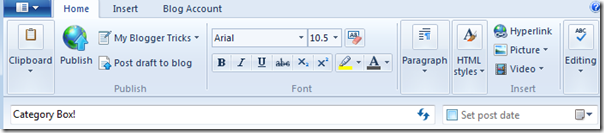
As you can see there exists a Category box just to the left of "Set post date" utility.

Organize Labels in Open Live Writer

(1) Setting a Label

Blogger labels are case sensitive but OLW has handled this problem quite smartly. You don't need to worry about letter casing while assigning labels to your posts in OLW. All you need to take care is to ensure you are not making any spelling mistakes.

For example if your blogger label is "Affiliate Marketing" , you can easily set this label to your post inside OLW by writing "affiliate marketing" or even "AffiLiatE markETING" , no matter what you write as long as the spelling is correct, OLW will apply the label correctly. Spelling mistakes would create new labels in your blog!

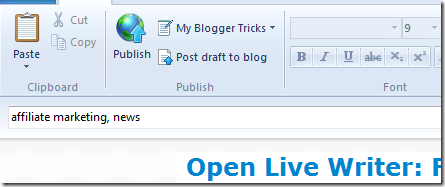
To set multiple labels to a blog post, comma separate labels inside the "Category box" . As shown below:
adding labels

(2) Create a New Label

You can also create new labels inside Open Live Writer to tag your blog posts.

Simply write down your new Label inside the "Category Box" and publish your post to Blogger! That's it.

creating new label

New Label will be created and added automatically to your blog post. Thus OLW helps better organization of your blog categories. You can easily create, remove or apply label to a specific post but if you wish to delete a label from your blog completely then you will need to do that through your blogger dashboard.

Creating and Editing a Static Page

This is an amazing new feature that OLW has which "Windows Live Writer" lacked. This option was only available for WordPress blogs but now thanks to "Open Live Writer" opensource courtesy, blogspot users can create static pages for their blog using OLW editor.

To create a new Page go to File Menu > New post > Choose "New page"

Create a Page

That's it! Give your page a title and hit publish.

To delete a Static Page in blogger, you will need to do that by going to Blogger > Pages

Delete a Page

Need Help?

Let me know if you needed any assistance in better understanding the technical configurations of OLW. I would love to help. I hope this tutorial series may help most of you in better configuring the blogging tool. Peace and blessings buddies! =)
Tuesday, 20 January 2015

A Bulletproof Password: Is It Really Possible?


bulletproof password


The recent Sony hack has everybody on edge, especially since it turns out that the files leaked also contained the passwords to a bunch of Sony emails, social media accounts and web server accounts. While, yes, it looks like so super powerful, pro-level hackers were hired to do the job, that doesn't negate the fact that Sony has some top notch security. And if Sony�s security can be breached to such a deep Wiki-leaks level, what does that mean for the rest of us whose security profiles are decidedly less intense?


Note: We found this peace of information extremely useful for all MBT readers and loyal customers. Since we have moved our hosting to Cloud therefore we would keep you updated with all latest software tools that we use so that you could be equally benefited and sustain a secure online business.


As someone who makes a living with music online, keeping your information and intellectual property safe is literally the key to your livelihood. Imagine what would happen if someone got access to your backing tracks or demos or somehow took your systems hostage. It�s scary, right? So what do you do? How do you keep your information and property safe?


Most of the time, as simplistic as it sounds, keeping your intellectual property and account information safe is a matter of choosing the right username and password combination. A lot of people, in spite of the multitude of warnings against this, stick with a single username and password combination for every login they have. This is the worst thing you can do! Yes, keeping track of literally a dozen (or more) different username and password combinations is difficult, but it is not impossible.


Stop Using One Login Code


Even the people who do create a variety of username and password combinations aren't keeping those combinations very safe. Most of them are still doing things like keeping usernames and passwords on post-its on their monitors or are writing them down in other very easy to find places. Worse still, people are creating text files in which all of their username and password combinations are kept. Talk about giving away the keys to the kingdom! 


If you are worried about keeping those details safe but aren't confident in your ability to remember them, spend some time hunting down the best password manager you can find to protect them against hackers and other threats. The security software company Trend Micro says a password management system secures your browser and uses keystroke encryption to protect your passwords.


Pass Phrases Are Better


Most companies, when you are creating your passwords, require you to use upper and lowercase letters, numbers, spaces, special symbols and the coordinates of your underground bunker. Believe it or not, that random assortment of letters, numbers and pound signs isn�t the super safe password that most believe it is. This is because most people still choose a single word and then �l33t speak� it to include the numbers, special characters, etc.  A single word, even �l33t�ed out, is still relatively easy to hack.


A much better approach, writes Null-Bytes, is to create a passphrase. This is where you string together a few words to create a really long password and then include all of the upper, lower, numbers, symbols, etc required by the server. The longer the password, the harder it is for a hacker to break and if you use a phrase, it�ll be easier for you to remember. 


Suspicion is Your Friend


Most people know, when that monthly email from PayPal turns up, screaming about account breaches, etc, that it�s a phishing scam. They know to go directly to PayPal using their web browser and not to click on anything within the email. Phishers, though, they�re getting more sophisticated. Phishers recently used text messaging to dupe Wells Fargo customers out of their social security numbers. GoDaddy account holders have also seen a spike in phishing attempts.


Remember the rule: never click on anything in an email or a text that references one of your accounts. Never give out information over the phone or through the mail. Whenever you are contacted regarding an account, the best thing to do is to then contact the account holding company directly and talk to someone there. 


You can be safe online. You can protect your information. You just have to be careful and smart. The most successful data breaches aren�t huge like Heartbleed. They�re small and seemingly innocuous. Always keep your guard up!

What are your views on creating a bulletproof password and ensuring 100% security of your online assets? Was your data ever compromised? Do share your precious views by posting your experiences. Peace and blessings!